In-house
CAD $249
One entity and its corporate group.
Enquire about the workbookIn development · target launch November–December 2026
A partnership working-paper file built around allocations, partner continuity and review.
Workbook · .xlsx · Macro-free
Extracts from a fictional scenario, with the worksheet layout and figures preserved.
Download sample PDFPDF · fictional data · 0.2 MB
Illustrative preview
Preview figures are illustrative and do not recalculate. The sample gallery shows the actual workbook.
| Row | Item | Amount | Reference |
|---|---|---|---|
| 4 | Partner register | ||
| 5 | Partner 1 — units held and profit share | 6,400 · 64.00% | Sch 50 |
| 6 | Partner 2 — units held and profit share | 3,600 · 36.00% | Sch 50 |
| 7 | Allocation of net income | ||
| 8 | Allocated — partner 1 | 1,412,800 | box 116 |
| 9 | Allocated — partner 2 | 794,700 | box 116 |
| 10 | Total allocated — agrees to the return | 2,207,500 | Sch 50 |
| 11 | Partner continuity | ||
| 12 | At-risk amount — partner 2 | 1,940,000 | s.96(2.2) |
| 13 | Adjusted cost base — closing, partner 2 | 2,182,100 | s.53 |
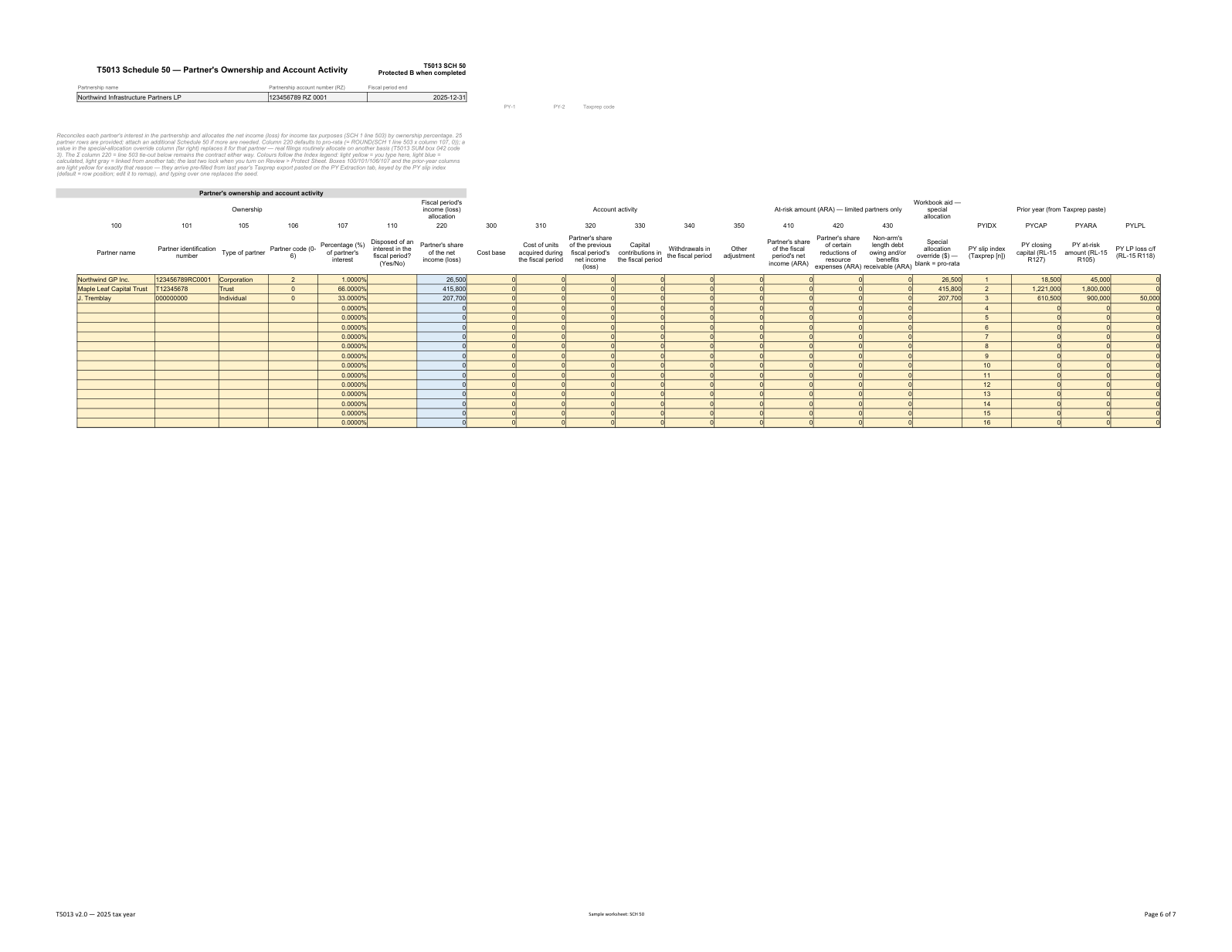
Partner register and allocation of net income
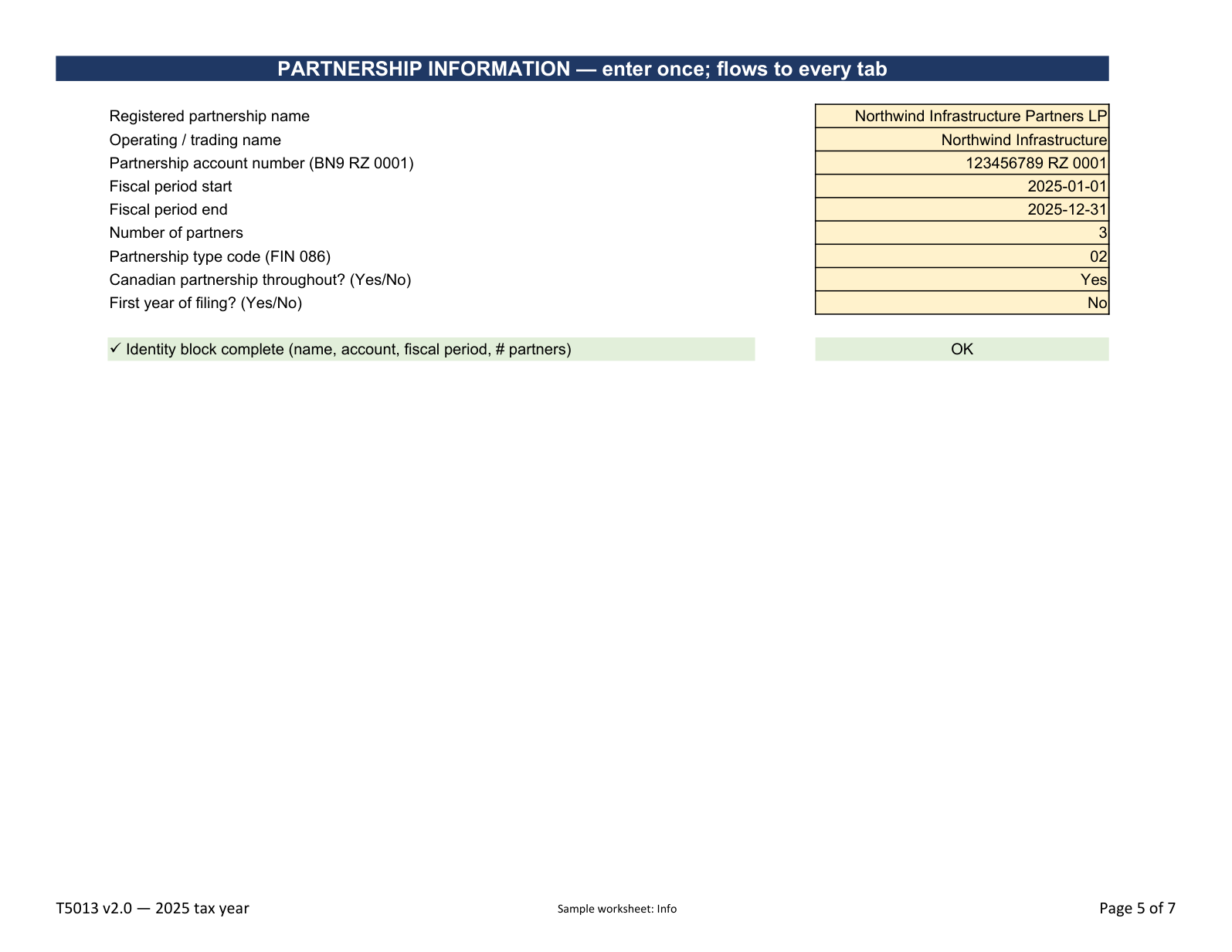
Read Index and the assumptions, then complete Info and the relevant Manual Input fields. Establish the reporting period and source information before allocating income.
Index · Info · Manual Input
Enter the trial balance in TB and review GL Map and the GIFI schedules. Use PY Extraction for filed comparative amounts where available.
TB · GL Map · PY Extraction
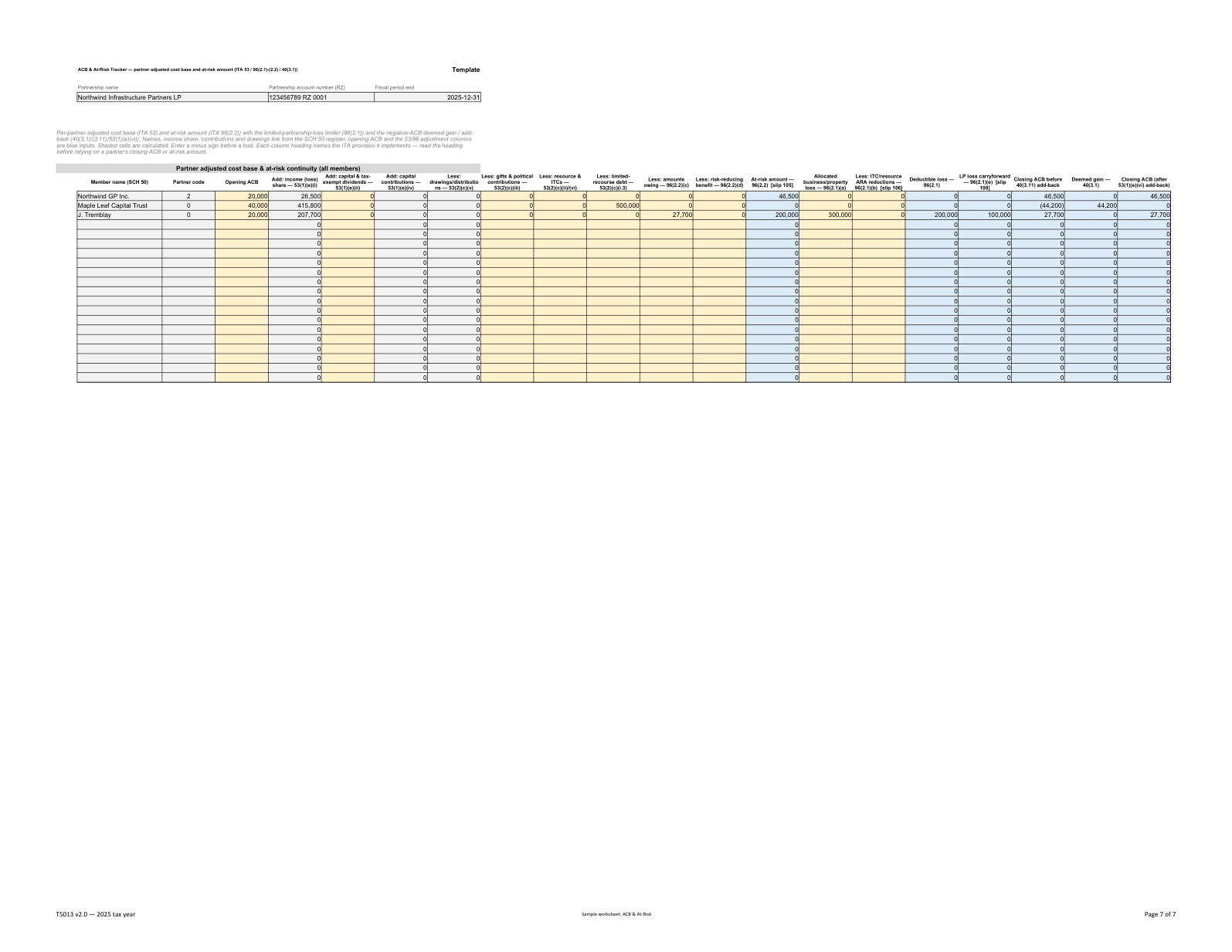
Complete the SCH 50 register, percentages and any supported special allocations. Review the resulting allocations alongside ACB & At-Risk and Capital Recon.
SCH 50 · ACB & At-Risk · Capital Recon
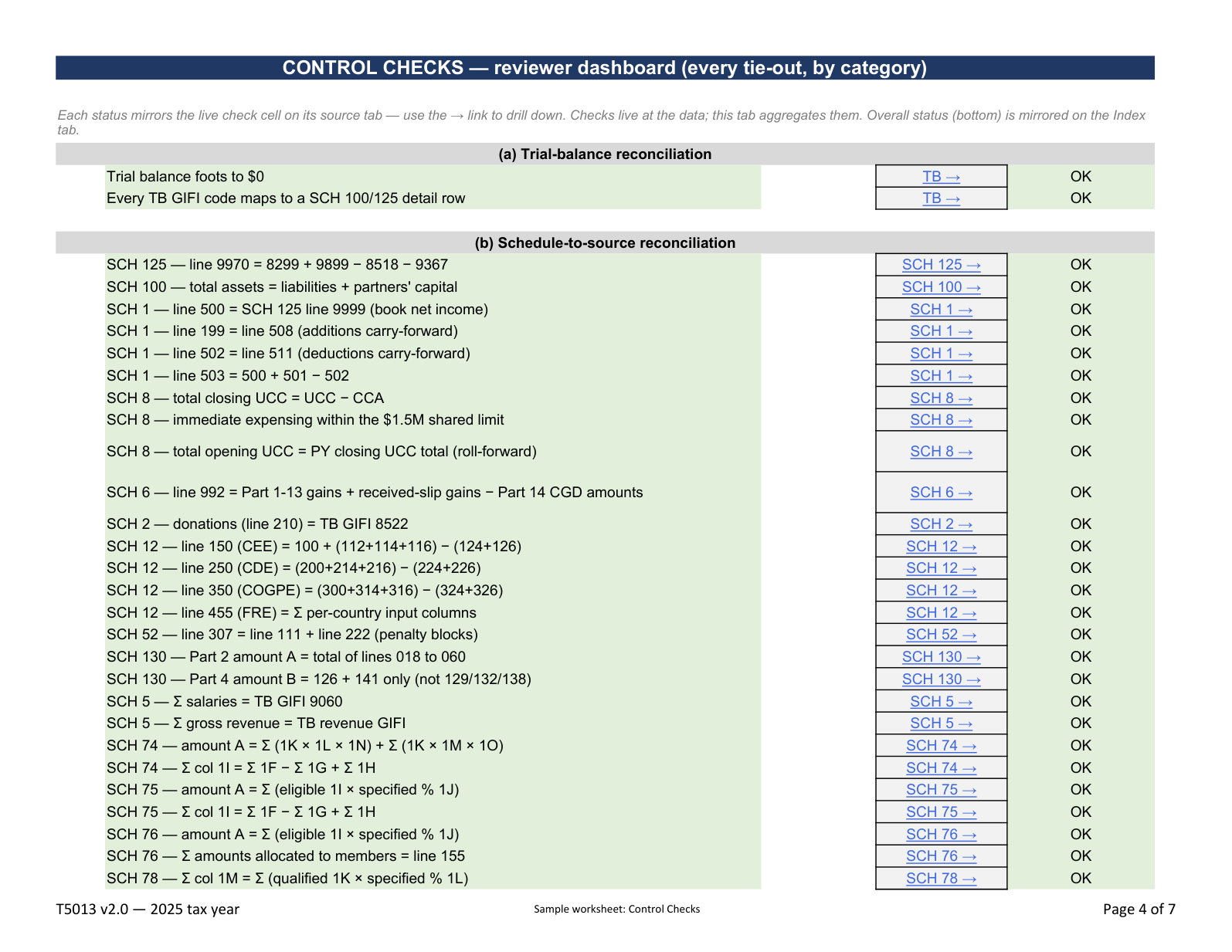
Follow Control Checks to each outstanding item, including allocation and capital reconciliations. Review the Québec schedules and compare the prepared return using Return Tie-Out.
Control Checks · Return Tie-Out
Review the Taxprep Import map before using the first Import sheet through the documented procedure. Reconcile transferred amounts and complete the schedule-level Sign-Off.
Taxprep Import · Import · Sign-Off
Preparation and review are performed by the purchaser’s engagement team. Filing and posting take place in the relevant external software.
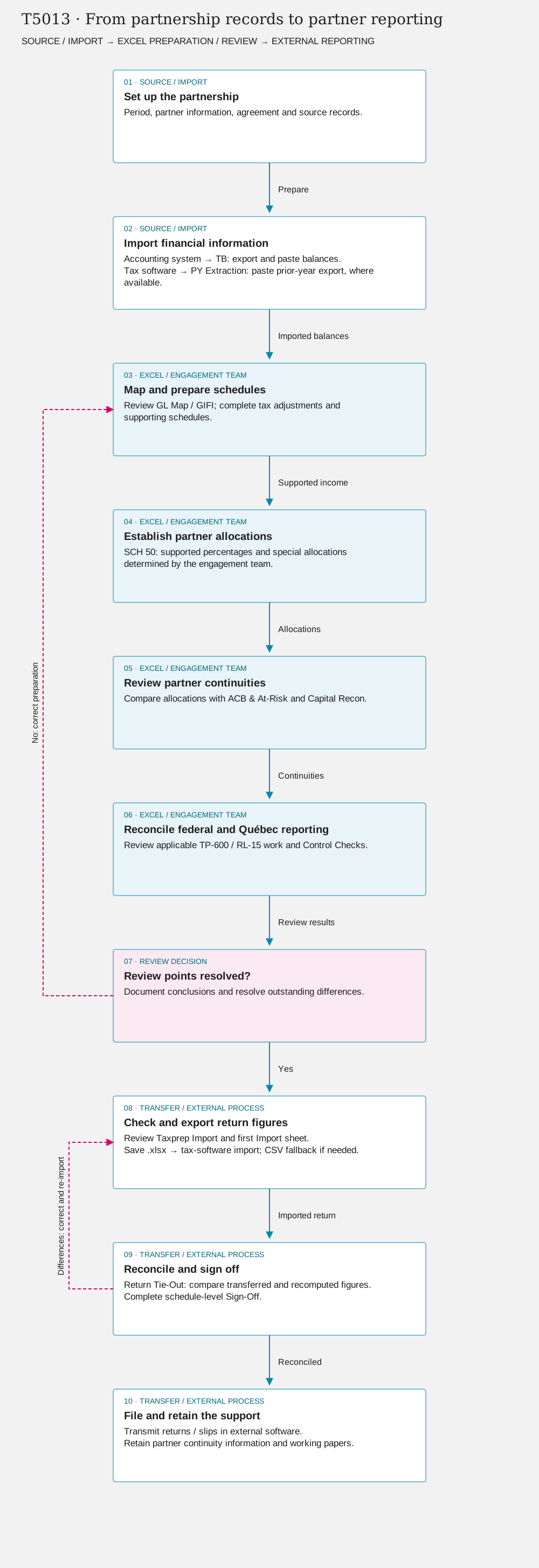
Period, partner information, agreement and source records.
Accounting system → TB: export and paste balances. Tax software → PY Extraction: paste prior-year export, where available.
Review GL Map / GIFI; complete tax adjustments and supporting schedules.
SCH 50: supported percentages and special allocations determined by the engagement team.
Compare allocations with ACB & At-Risk and Capital Recon.
Review applicable TP-600 / RL-15 work and Control Checks.
Document conclusions and resolve outstanding differences.
Review Taxprep Import and first Import sheet. Save .xlsx → tax-software import; CSV fallback if needed.
Return Tie-Out: compare transferred and recomputed figures. Complete schedule-level Sign-Off.
Differences: correct and re-import → step 8 · Reconciled → step 10
Transmit returns / slips in external software. Retain partner continuity information and working papers.
This inventory describes the v2.0 demonstration workbook. The federal and Québec worksheets support one partnership file; the practitioner establishes which schedules and partner treatments apply.
TP-600, its supporting schedules and RL-15 worksheets are part of the file. Review Québec-specific adjustments and reconcile the partner-level reporting across both jurisdictions.
T5013 · v2.0 · 2025
The examples correspond to the demonstration files identified below. Launch is targeted for November–December 2026.
Published changes will be identified with the affected edition. Automated checks do not replace professional review.
A perpetual licence for the purchased edition, within its scope. A new tax year is a separate edition.
CAD $249
One entity and its corporate group.
Enquire about the workbookOn request
One firm preparing client engagements within its licence scope.
Request practice pricingOn request
A group requiring access across more than one firm.
Request enterprise pricingNo. The calculations support preparation; filing takes place through the appropriate process and software.
Sheets are supplied without active protection. Cell lock flags allow protection to be enabled when needed.
The .xlsx file runs locally, without macros or external workbook links. No telemetry service is built into the workbook.
Minor corrections to the purchased edition are included under the terms of sale. A new tax year is a separate edition.